Mastering Python Environments in VS Code: A Comprehensive Q&A
Q&A about Python Environments Extension for VS Code: automatic discovery, PET scanner, uv integration, Quick/Custom Create, Python Projects for monorepos, and rollout details.
Managing Python environments has always been a complex task due to the variety of tools available: venv, conda, pyenv, poetry, and pipenv. The new Python Environments extension for VS Code brings all these under a unified interface, simplifying environment creation, switching, and package management. This Q&A covers everything you need to know about this extension, its features, and how it streamlines your Python development workflow.
What is the Python Environments Extension and why was it created?
The Python Environments Extension is a dedicated tool within VS Code that provides a consistent, unified interface for managing Python interpreters, virtual environments, and packages. It was created to solve the fragmentation that has historically plagued Python development, where developers had to learn and switch between multiple tools like venv, conda, pyenv, poetry, and pipenv. After a year in preview—refined through community feedback—the extension is now generally available. It works alongside the existing Python extension and requires no manual setup. Simply open a Python file, and the extension automatically discovers all available environments from various managers, presenting them in a single, clean UI. This eliminates confusion and speeds up common tasks like creating, deleting, or switching environments.
How does the extension discover environments automatically?
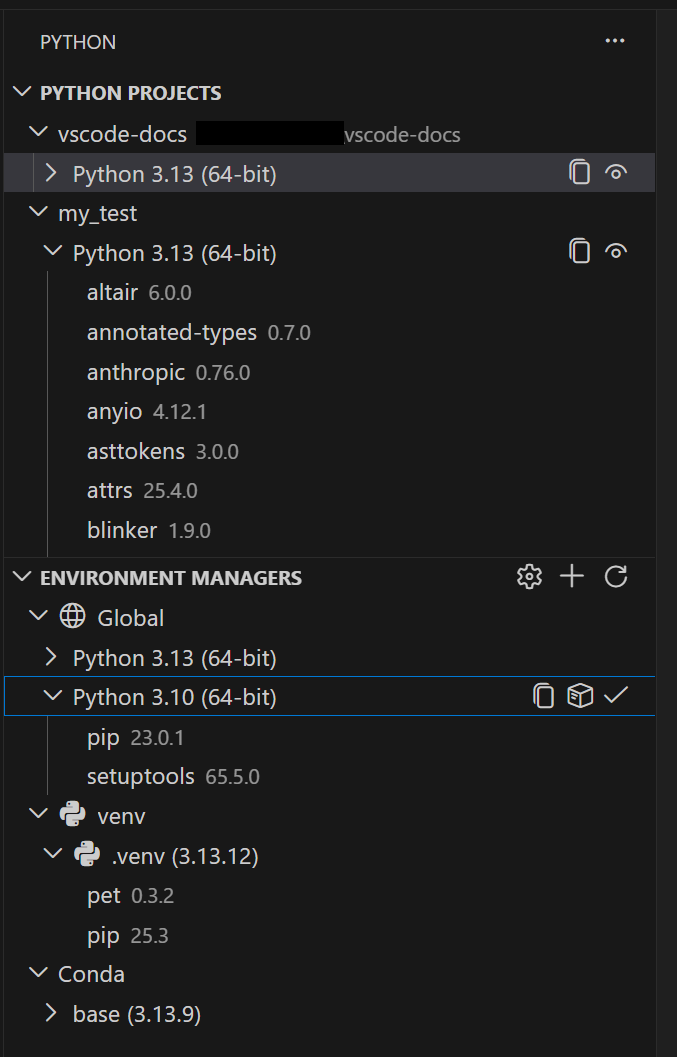
The extension automatically finds environments created by all major managers: venv, conda, pyenv, poetry, pipenv, and system Python installs. This discovery is powered by PET (Python Environment Tool), a fast Rust-based scanner that checks your PATH, known installation directories, and configurable search paths. PET is already used in the Python extension for environment discovery, so this is the same proven engine now paired with a dedicated UI. For most users, environments are found without any configuration. If you have environments in non-standard locations, you can define workspace-level search paths using glob patterns or set global paths for shared directories outside your workspace. This flexibility ensures that no matter where your environments live, the extension can locate them.
What is PET and how does it work behind the scenes?
PET (Python Environment Tool) is a high-performance scanner written in Rust that quickly locates Python environments on your system. It examines the system PATH, common installation folders (like ~/.venv, ~/anaconda3, etc.), and any user-configured directories. PET has been the backbone of environment discovery in the Python extension for some time, but the new Environments extension now gives it a dedicated visual interface. The scanning is efficient and cross-platform, ensuring reliable results on Windows, macOS, and Linux. By using PET, the extension can detect environments from multiple managers simultaneously without performance hits, allowing you to switch between projects using different tools seamlessly. It also respects workspace-specific settings, enabling teams to share environment paths via VS Code settings files.
How does the extension leverage uv for faster environment creation?
If you have uv installed on your system, the Python Environments extension automatically uses it to create venv environments and install packages. uv is a modern, extremely fast package installer and resolver, especially beneficial for large projects with many dependencies. This behavior is enabled by default through the setting python-envs.alwaysUseUv. When uv is not present, the extension falls back to traditional tools. This integration significantly reduces the time required to set up new environments, making it ideal for developers who frequently spin up isolated workspace environments. The speed gain is most noticeable when installing packages from a requirements.txt or pyproject.toml file, as uv's parallel downloads and caching outperform pip by a wide margin.

What are Quick Create and Custom Create features?
The extension offers two ways to create new environments. Quick Create (accessed via the + button in the Environments Manager view) instantly builds a working environment using your default manager, the latest Python version available, and any workspace dependencies found in requirements.txt or pyproject.toml. It provides a ready-to-use environment in seconds. For more control, Custom Create (via Python: Create Environment in the Command Palette) lets you choose the environment manager, Python version, environment name, and which dependency files to install. This feature supports both venv and conda for direct creation from within VS Code; for managers like pyenv, poetry, and pipenv, the extension discovers environments you create with their respective command-line tools. This flexibility ensures you can quickly prototype or precisely configure environments as needed.
How do Python Projects help with environment mapping in monorepos?
Python Projects is a feature that allows you to map specific environments to particular folders or files within your workspace. This is especially useful in monorepo (monolithic repository) structures where different subprojects may require different Python versions or dependencies. Instead of manually switching environments each time you open a file, you can associate an environment with a folder path or a glob pattern. The extension then automatically activates the correct environment when you work on that part of the project. This solves a common pain point in monorepo development by maintaining isolation and preventing conflicts between dependencies. It also simplifies collaboration, as environment mappings can be stored in workspace settings and shared among team members.
How can users enable the extension and what is the rollout plan?
Users can start using the Python Environments Extension immediately by setting python.useEnvsExtension to true in their VS Code settings. Over the next few weeks, the extension will be rolled out automatically to all users who have the Python extension installed, making it the default environment management interface. There is no additional installation required—it works seamlessly with the existing Python extension. After the rollout, all environment-related workflows (creation, deletion, switching, and package management) will be handled by this new extension. Users who prefer to wait will be automatically upgraded. The extension has been thoroughly tested during its preview phase and is now stable for general use. It retains backward compatibility and preserves any custom configurations you have set in your workspace.