Transform Your Old Smartphone Into a Reliable Offline GPS Navigator
Turn an old Android phone into an offline GPS using free map apps, a car mount, and a few setup steps. Works without data, saves money, and reduces e-waste.
Introduction
Have an old smartphone gathering dust in a drawer? Instead of letting it become e‑waste, you can give it a purposeful second life as a dedicated offline GPS. With free map apps and a few simple steps, that retired device becomes a navigation powerhouse that works without a data connection. Whether you're hiking remote trails, driving through areas with spotty coverage, or just want a backup for your main phone, this project is practical, cost‑saving, and surprisingly easy. In this guide, I'll walk you through the entire process—from prepping the phone to fine‑tuning maps for offline use—so you can hit the road with confidence.
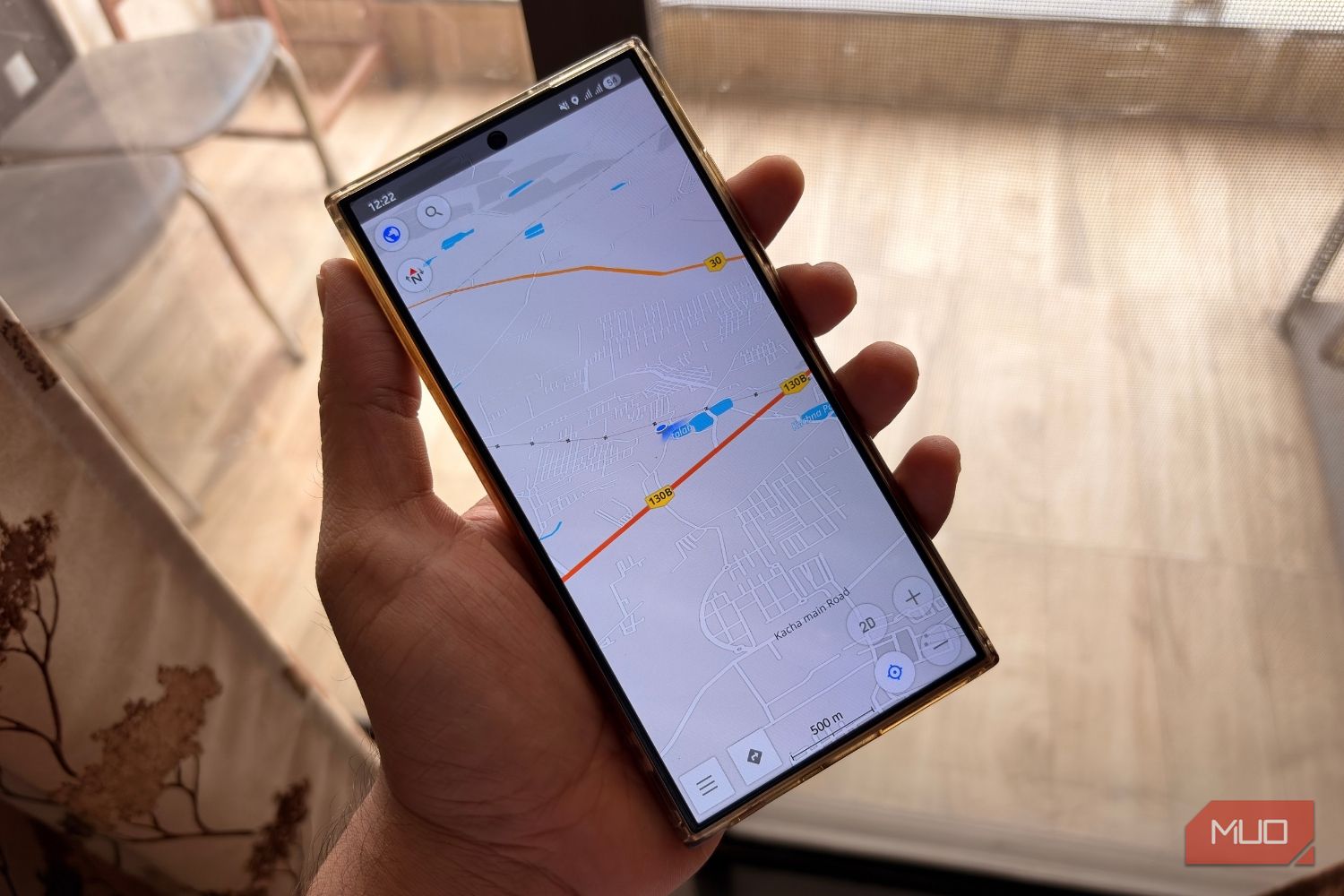
What You Need
- Old Android smartphone (works best with Android 6.0 or higher; GPS chip required)
- USB cable and car charger (to keep the phone powered during long trips)
- Suction‑cup car mount or adhesive dash mount
- MicroSD card (optional but recommended if the phone has limited internal storage)
- Wi‑Fi connection (temporary, for downloading offline maps)
- Offline map app (e.g., Google Maps, OsmAnd, or Maps.Me)
- Screen protector and a rugged case (optional, for added durability)
Step‑by‑Step Guide
Follow these steps to turn your old phone into a dedicated offline GPS. Each step includes actionable details and explanations.
Step 1: Factory Reset and Clean the Phone
Start by wiping the device to remove all personal data, old accounts, and unneeded apps. This gives you a clean slate and improves performance. Go to Settings > System > Reset > Factory data reset. After the reset, set up the phone with a minimal Google account (or skip it if you plan to install apps via APK). Disable all unnecessary services like Bluetooth, NFC, and background sync to conserve battery. Remove the SIM card if it still has one—you won't need cellular service, and removing it prevents accidental roaming charges.
Step 2: Choose and Install an Offline Maps App
Two excellent free options dominate this space. Google Maps allows you to download specific regions for offline use—great for turn‑by‑turn driving directions. OsmAnd or Maps.Me offer detailed OpenStreetMap data, ideal for hiking, biking, and rural areas. Install your preferred app via the Play Store or sideload the APK if the phone can't access the store. For this guide, I'll focus on Google Maps offline, but the same principles apply to the others.
Step 3: Download Maps for Your Target Areas
Open the map app and search for the region you'll be navigating. In Google Maps, tap the profile icon > Offline maps > Select your own map. Adjust the rectangle to cover the area you need (e.g., a state or province) and download. Each download can be up to 2 GB for a large city. If your phone has limited internal storage, insert a microSD card and set it as the default download location in the app's settings. Pro tip: Download maps when connected to Wi‑Fi to avoid using mobile data.
Step 4: Optimize GPS and Location Settings
To ensure accurate positioning, go to Settings > Location and set the mode to High accuracy (uses GPS, Wi‑Fi, and mobile networks). Even without a SIM, the device can still use Wi‑Fi and Bluetooth scanning to refine location. Turn off “Scanning always available” after the initial setup to save battery. Also, download a GPS test app (e.g., GPS Status & Toolbox) to verify the phone locks onto satellites quickly. Hold the phone outside or near a window for a minute during first setup.
Step 5: Mount and Power the Phone in Your Vehicle
Choose a sturdy car mount that holds the phone securely. Attach it to your dashboard or windshield so the screen is visible but not obstructing your view. Route a USB‑C or micro‑USB cable from the charger to the phone. For long trips, a 2.1‑amp car charger is recommended to keep the battery from draining while the screen is on. Extra tip: If your phone supports wireless charging, you can skip the cable mess by using a wireless car mount.
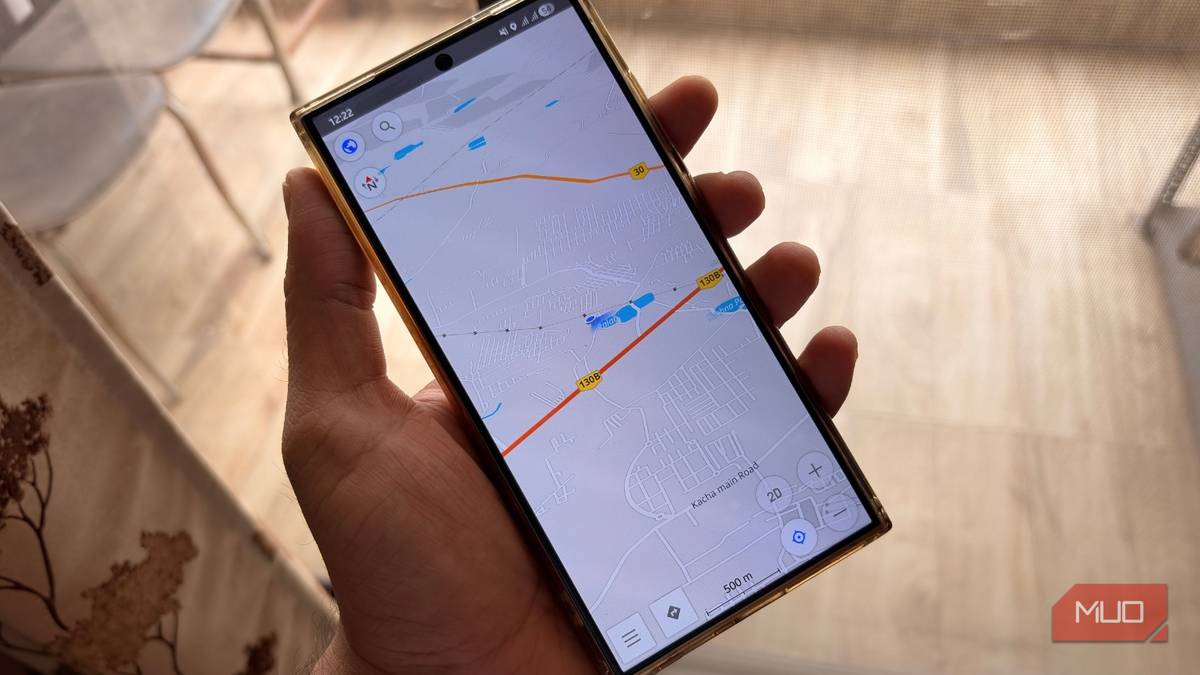
Step 6: Test Before You Travel
Before relying on your new offline GPS, do a short test drive. Turn on airplane mode to simulate an offline environment. Open the map app, set a destination, and confirm that turn‑by‑turn navigation works without a data connection. Check that voice prompts are clear (you can download offline voice files in some apps). Also verify that the route recalculation works if you miss a turn. This test avoids unpleasant surprises on a real journey.
Step 7: Customize for Power Efficiency and Safety
Now fine‑tune the phone for daily use. Reduce screen brightness to a comfortable level to save battery. Disable all notifications except essential ones (or enable Do Not Disturb while driving). Consider installing an app like Tasker to automate settings—e.g., launch the map app when it connects to your car's Bluetooth. For safety, use a phone holder that doesn't block air vents, and never touch the screen while driving.
Tips for Best Results
- Keep maps updated – Roads change. Re‑download maps every few months, or set the app to auto‑update over Wi‑Fi when you're at home.
- Use a dedicated battery pack – If your car charger port is weak, a portable power bank can keep the phone running for hours.
- Add a compass app – Offline GPS can sometimes drift; a compass helps confirm direction when stopped.
- Store the phone in a cool place – Direct sunlight can overheat the battery. Mount it away from the sun, or use a sunshade when parked.
- Consider a secondary app for backup – Install both Google Maps and OsmAnd so you have redundancy. The same offline area can be saved in both.
- Remove unnecessary apps – Uninstall bloatware and disable background processes to free up RAM and storage. A lean phone runs navigation more smoothly.
- Use a microSD card for large map packs – If you travel across multiple states or countries, a 32 GB card easily holds all the data you need.
Repurposing an old phone as an offline GPS is one of the most satisfying DIY projects for tech enthusiasts. It saves you from buying a dedicated device, reduces electronic waste, and provides a reliable navigator that won't distract you with incoming calls or messages. With the steps above, you'll have a fully functional offline GPS ready for your next adventure—whether it's a cross‑country road trip or a weekend hike.