How to Seamlessly Transition from Fitbit to Google Health: A Step-by-Step Guide
A detailed how-to guide for migrating from the retired Fitbit app to Google Health, covering backup, setup, data sync, customization, and tips for a smooth switch.
Introduction
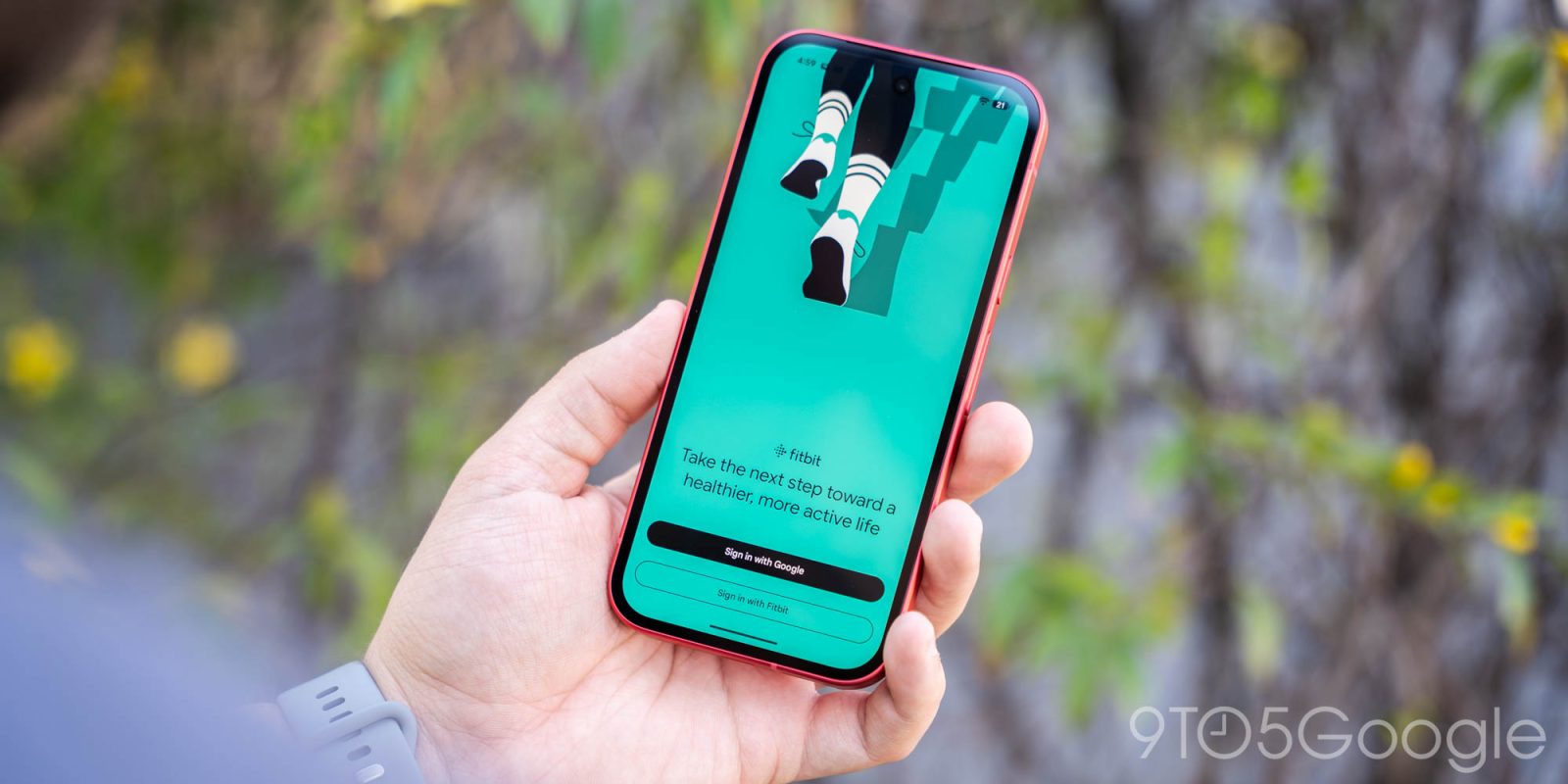
Google recently announced that the standalone Fitbit app is being phased out and replaced by a new platform called Google Health. While this might sound alarming to loyal Fitbit users, the shift actually brings several benefits—like deeper integration with Google services, improved data analytics, and a unified health dashboard. If you own a Fitbit device (such as the new Fitbit Air), you’ll need to migrate your data and activities over to Google Health. This guide walks you through the entire process, from preparation to customization, so you can make the transition smoothly and start enjoying the enhanced features.
What You Need
- A Fitbit device (e.g., Fitbit Air, Charge, Versa, etc.) fully charged and functioning
- A Google account (if you don’t have one, create it at accounts.google.com)
- The Google Health app installed on your smartphone (iOS or Android) – download from your app store
- Access to Wi‑Fi or mobile data for syncing
- Your current Fitbit login credentials (email and password)
- Optional: a computer to manage advanced settings via the web dashboard
Step-by-Step Guide to Switching from Fitbit to Google Health
Step 1: Back Up Your Fitbit Data
Before making any changes, ensure your historical fitness data is safe. Open the existing Fitbit app and go to Account → Data Export. Request a full data export (this may take up to 24 hours). Google Health will eventually import most of your data automatically, but having a backup gives you peace of mind.
Step 2: Update Your Fitbit Device Firmware
Google Health works best with the latest device firmware. In the old Fitbit app, navigate to your device settings and check for updates. Install any pending updates. This ensures compatibility with the new platform.
Step 3: Download and Install Google Health
Visit your phone’s app store, search for “Google Health,” and download the official app. Open it and sign in with the same Google account you intend to use with your Fitbit. (Tip: If you have multiple Google accounts, choose the one you use for health and fitness tracking.)
Step 4: Link Your Fitbit Account to Google Health
Once inside Google Health, tap Connect a Device or Add Tracker. Select Fitbit from the list of supported brands. You’ll be redirected to a Fitbit authorization page. Log in with your existing Fitbit credentials and grant permission for Google Health to access your activity, sleep, heart rate, and other metrics. After authorization, your Fitbit device will automatically appear in Google Health.
Step 5: Sync Your Historical Data
Google Health will begin importing your past data—steps, workouts, sleep patterns, etc. This process runs in the background and may take a few hours depending on how much data you have. Keep the app open and connected to Wi‑Fi to speed it up. Do not close the app prematurely. You can check the sync status under Settings → Data Sync.
Step 6: Customize Your Dashboard
After data transfer, personalize your Google Health experience. Tap the Dashboard tab and rearrange cards (e.g., move “Steps” to the top, add “Sleep,” “Heart Rate,” “Calories,” etc.). You can also set daily goals, choose a theme (light or dark), and enable notifications. For a more comprehensive view, link other Google services like Google Fit or Google Calendar.

Step 7: Test a Real‑Time Sync
Wear your Fitbit and do a quick activity—walk for 5 minutes or perform a short workout. Check Google Health to see if the data appears within a minute. If not, go to Settings → Connected Devices and force a sync. Also verify that sleep tracking works by wearing the device to bed tonight and checking the next morning.
Step 8: Adjust Privacy and Sharing Settings
Google Health offers granular control over who sees your data. Navigate to Settings → Privacy. Decide whether to share your activity with friends, enable Google Health to use your data for research (opt‑in), or keep everything private. You can also disconnect the Fitbit link later if you change your mind.
Step 9: Uninstall the Old Fitbit App (Optional)
Once you’re confident that Google Health is working properly and all your data is synced, you can safely delete the original Fitbit app from your phone. This frees up storage and reduces confusion between the two apps. Keep in mind that some Fitbit‑only features (like the old social feed) may not be available in Google Health, but most core tracking functions are present.
Tips for a Smooth Transition
- Stay patient with data migration. Large datasets (e.g., years of sleep logs) can take time; avoid interrupting the sync.
- Explore new features. Google Health introduces better integration with Google Assistant, Google Maps (for route tracking), and personalized insights based on AI. Try the “Health Coach” feature if available.
- Keep an eye on updates. Both Google Health and your Fitbit firmware will receive regular updates. Enable auto‑update to always have the latest functionality.
- Use the web dashboard. For deeper analysis, visit health.google.com on a computer keyboard. The web interface gives you charts, trends, and export options.
- Note: some Fitbit features may disappear. The old app had unique social challenges and guided programs. Google Health may offer different, but generally improved, alternatives.
- Secure your Google account. Since all your health data now resides under Google, enable two‑factor authentication (2FA) for added security.
By following these steps, you’ll be well on your way to using Google Health with your Fitbit device. The transition might feel unfamiliar at first, but the unified platform ultimately makes health tracking simpler and more powerful.